
RAM is volatile. Pull the power and it’s gone.
That single fact is why most people never touch RAM folders — one crash, one unmount, one reboot and the data evaporates. RAM Folder exists to remove that risk entirely. Here’s how. ↓
Speed you can keep.
Solving the volatility problem.
Most RAM folder solutions hand you a volume and walk away.
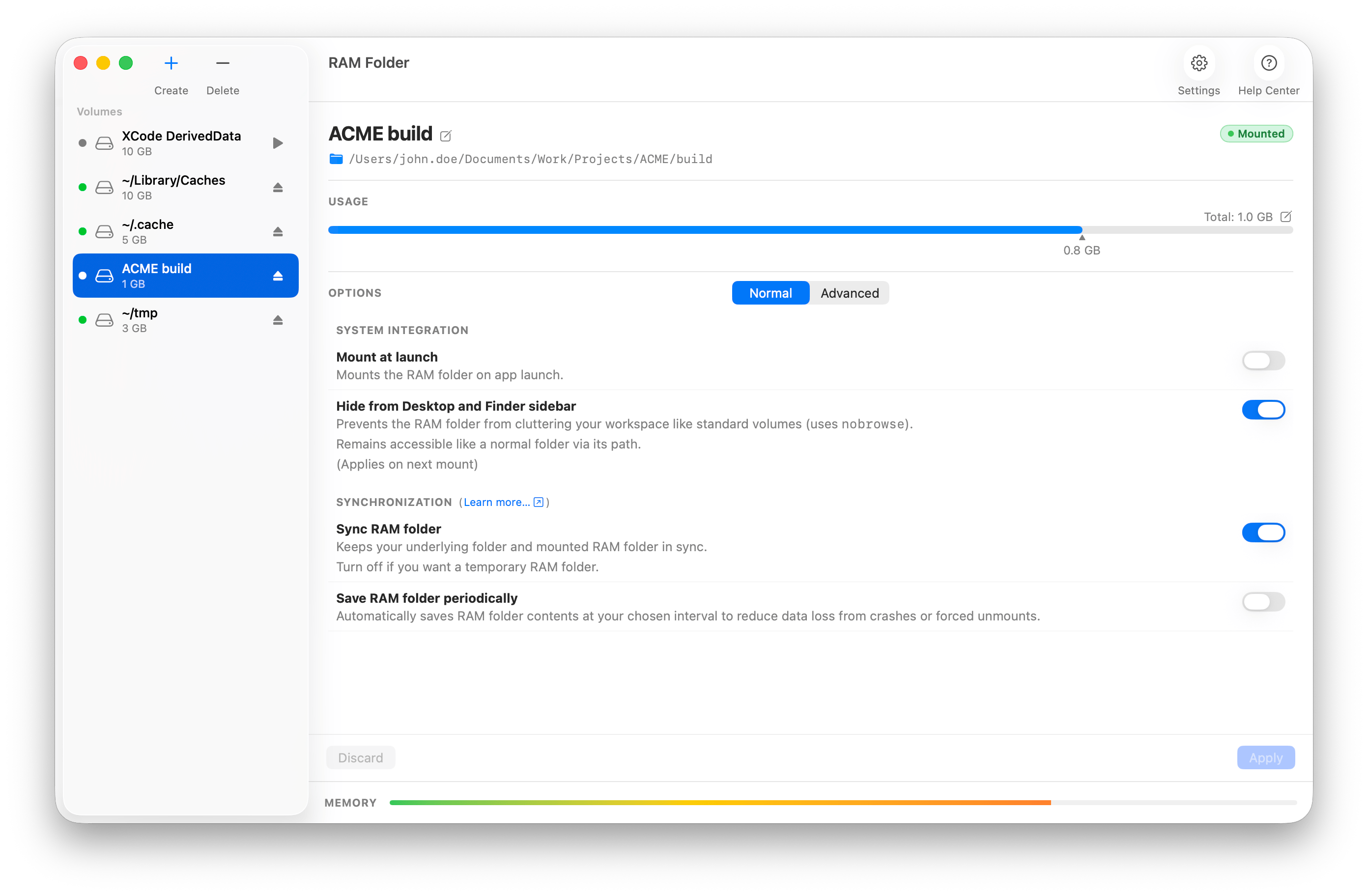
RAM Folder treats persistence as the whole point — your data flows to and from storage
automatically, so a RAM folder feels exactly like a normal folder that just happens to be lightning fast.
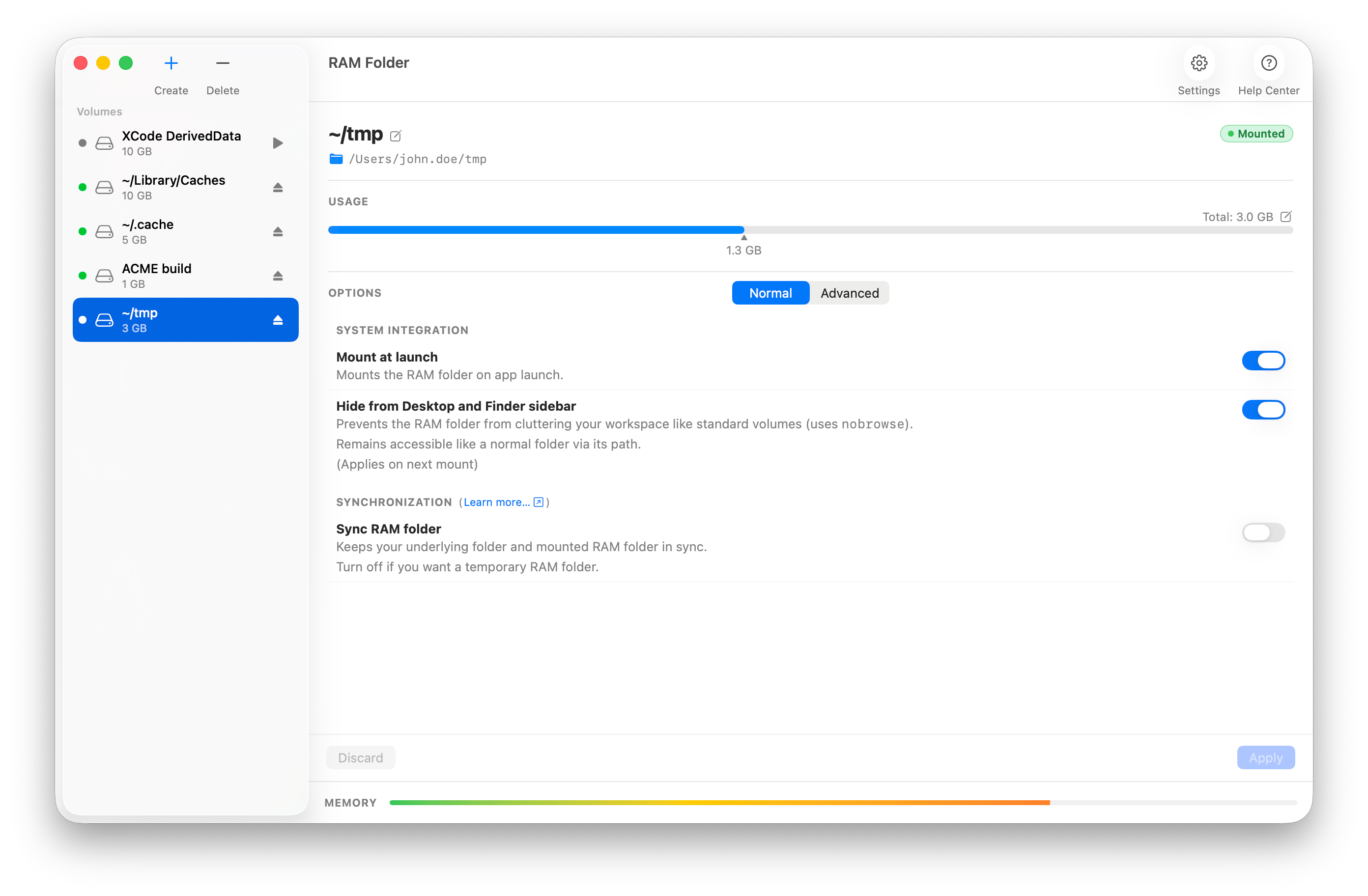
Of course, you can also disable persistence entirely for a given RAM folder.
It will behave like a temporary RAM folder: all changes will be lost when the folder is unmounted.
Create a RAM folder from any folder
Drag a folder onto the app and it mounts a RAM volume pre-loaded with that folder’s contents. Your project caches, build folders, or scratch space instantly become RAM folders.
- Drop-to-seed in one gesture
- Size is automatically suggested from the folder's size
- Works with the folder you already use day-to-day
Save to disk or cloud on unmount
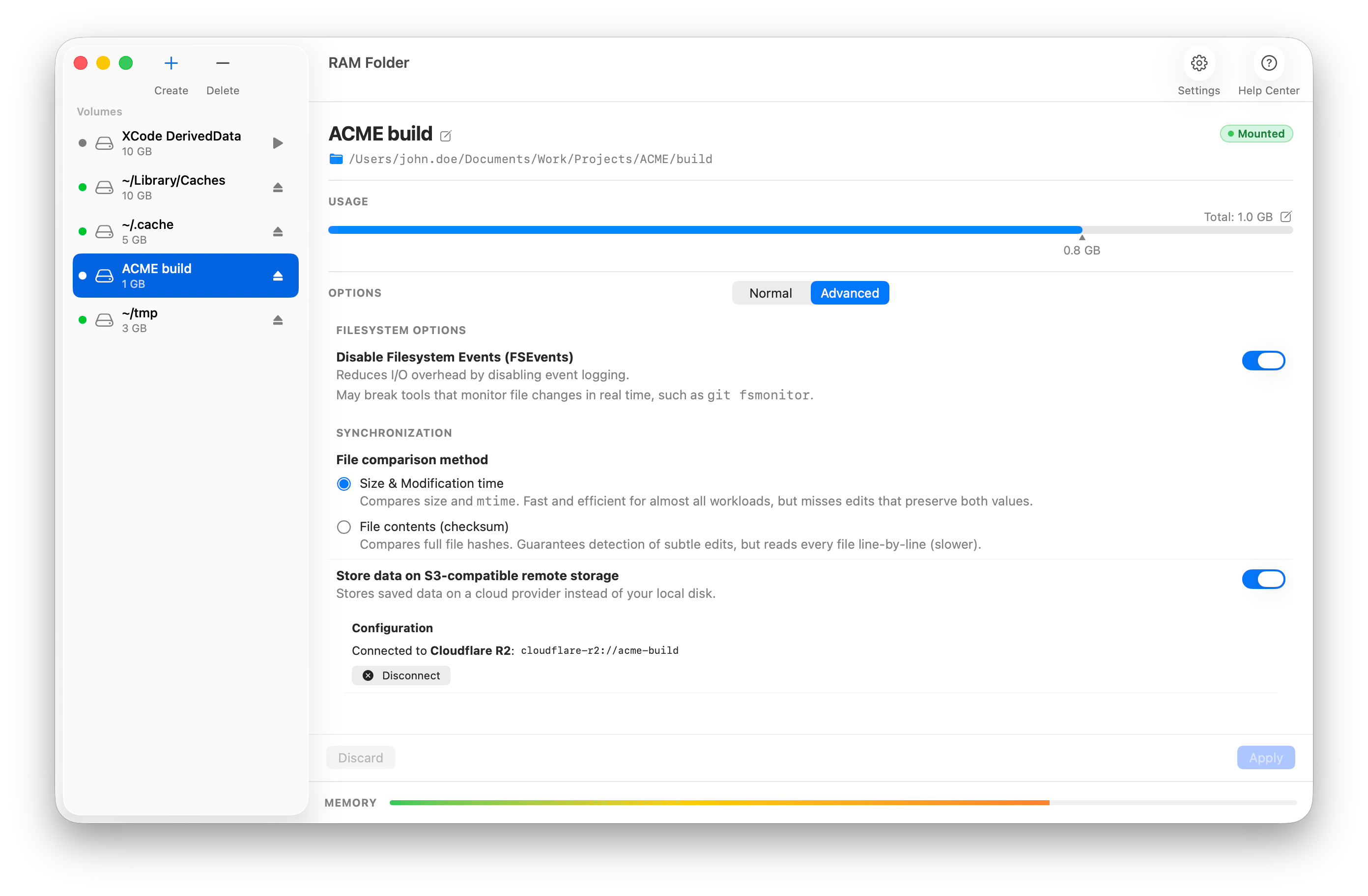
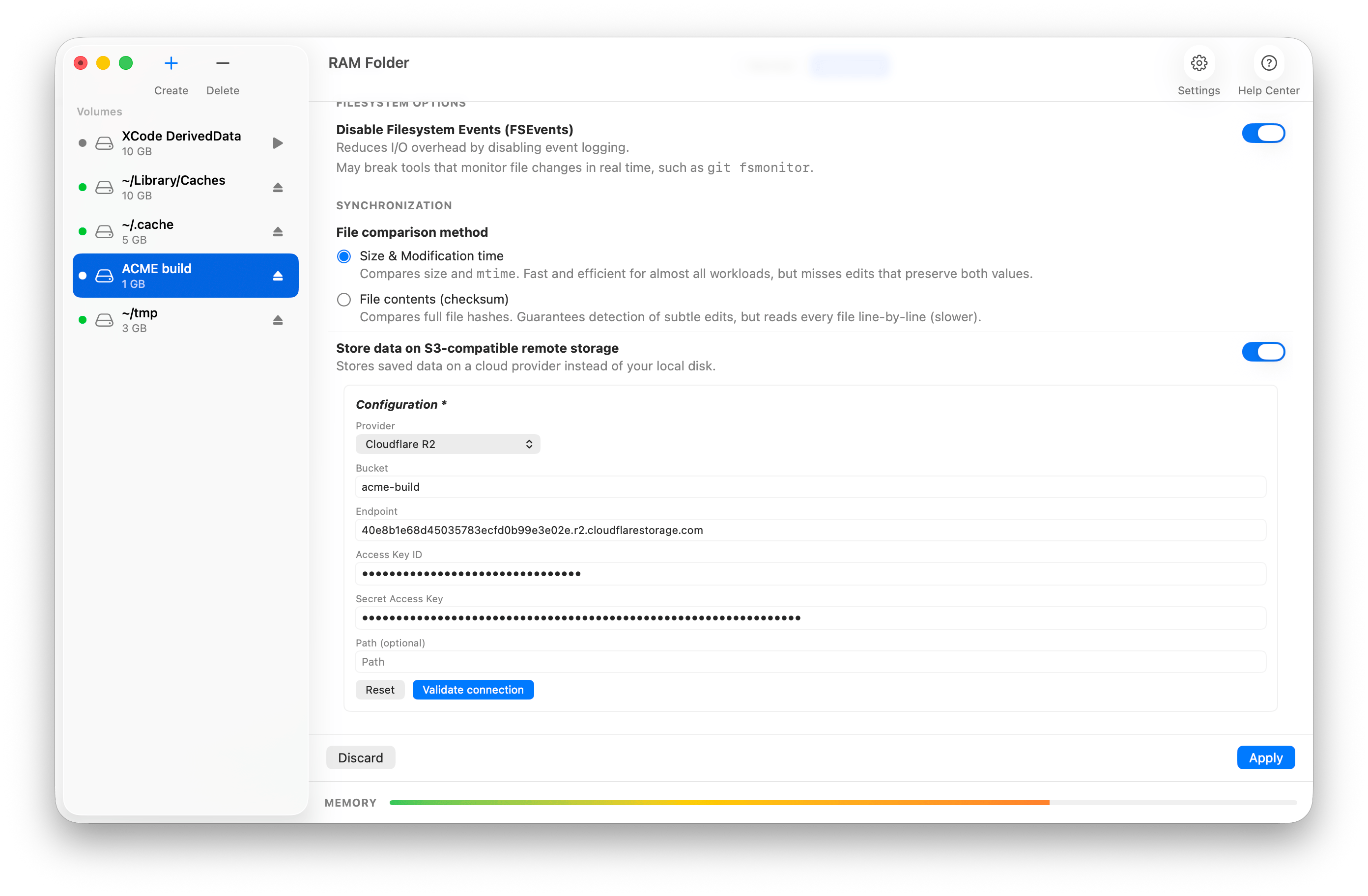
Work entirely in RAM, then eject. RAM Folder syncs everything back to a folder (or an S3-compatible storage) before the RAM folder is unmounted — powered by a bundled rclone engine that only moves what changed.
- Your files persist between sessions
- Nothing to remember — it happens on unmount and quit
Incremental backups
You can configure RAM Folder to run incremental backups at the frequency of your choosing — so data loss from a kernel panic, forced halt, or any other incident has limited impact.
- Incremental backups on a schedule you set
- Survives kernel panics, forced halts & crashes
The small, careful details.
But… doesn’t this need a ton of RAM!?
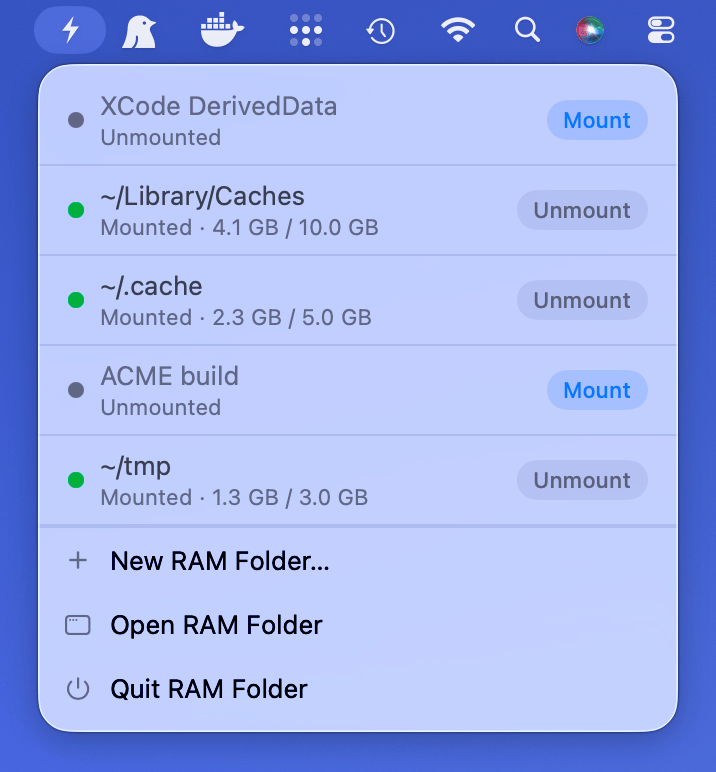
A RAM folder doesn’t have to stay mounted.
Mount it right before you open the app that needs it, eject it when you’re done — your data is saved back to disk either way. The memory is only borrowed for as long as you’re actually working.
A 10 GB RAM folder doesn’t take 10 GB.
The size you set is a ceiling, not a reservation. A RAM folder grows as you fill it and uses exactly as much memory as the files it holds — 2 GB of build artifacts in a 10 GB RAM folder costs you 2 GB.
A CLI to integrate
into your workflows.
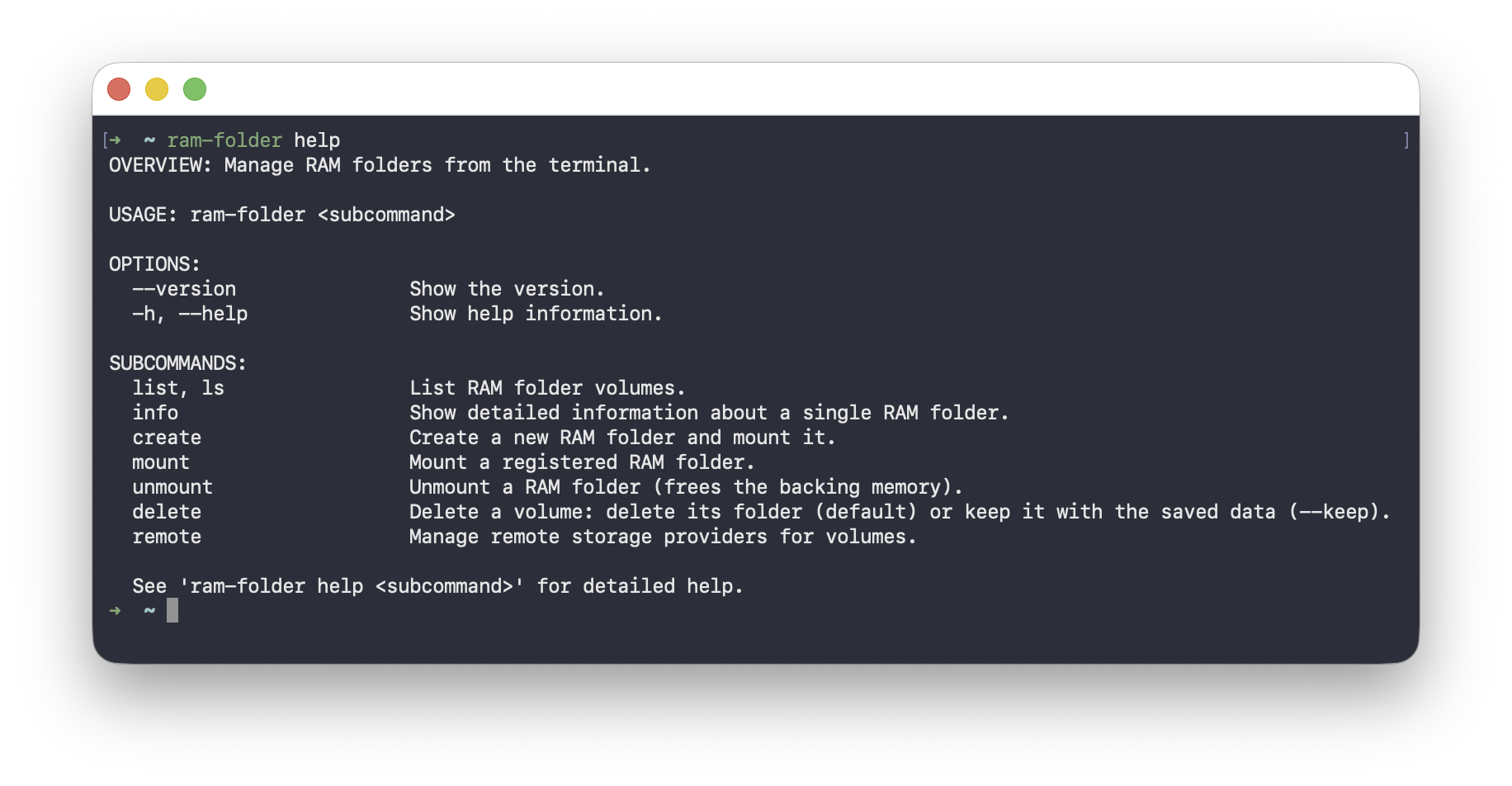
Create, mount, back up and unmount RAM folders without leaving the terminal — handy for scripts, automation and integration into development workflows, such builds, tests or CI/CD workflows. The same engine under the hood, same performance guarantees.
Buy it once. Keep it forever.
No subscription, no account, no upsell.
Try every feature free for two weeks.