

Data Safety
What RAM Folder promises about your data, where those promises stop, and what happens when something goes wrong. Everything here assumes Sync RAM folder is on, and builds on the three copies described in Synchronization: RAM, the snapshot, and your folder.
How does RAM Folder keep my data safe?
Every mount and every eject copies your files between the three
copies. The one thing to get right is which copy wins at mount, and RAM
Folder decides that with a small marker file,
restore-pending.json, kept in the RAM folder’s container
on your Mac:
- Marker absent: your folder has received your last save, so it is the reference. The mount copies it into the snapshot, deletions included, then into RAM.
- Marker present: the snapshot holds work your folder never received. The mount keeps the snapshot’s versions, only adds files that are new in the folder, then copies the snapshot into RAM.
The marker is written as soon as a save starts, periodic or at eject, and deleted only once your folder has received that save.
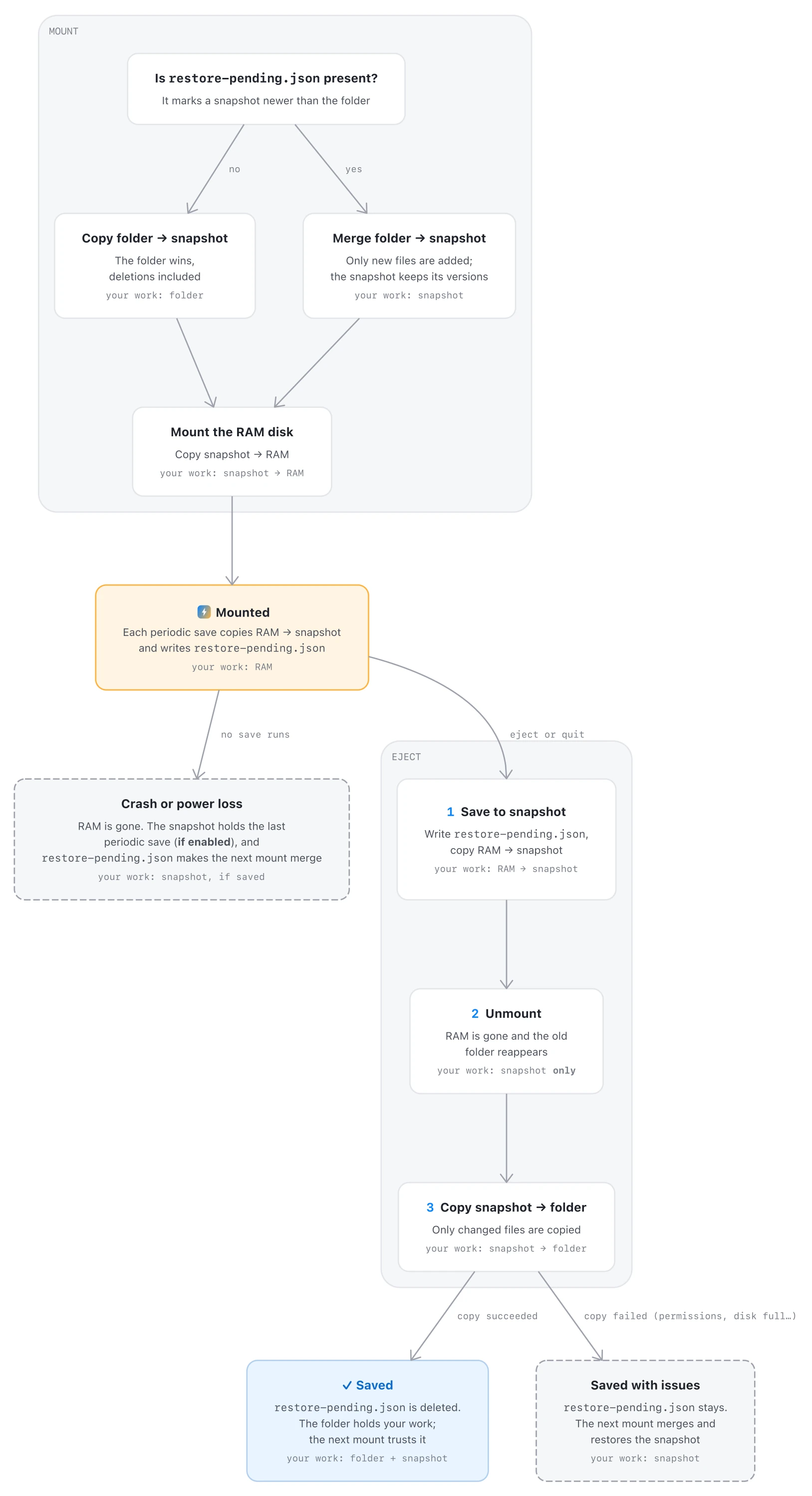
One mount and eject cycle, and where restore-pending.json comes in.
What is guaranteed?
- Every eject saves. Ejecting from the app, Finder or the command line, quitting the app, a normal shutdown or restart, and ejecting while the app is closed all save RAM into your folder.
- An older copy never overwrites a newer one. Until your folder has received your last save, the next mount restores from the snapshot instead of trusting the folder.
- Files are never left half-written. Each file is copied under a temporary name and renamed once complete, so an interrupted copy keeps the previous version of that file. The next mount cleans up the temporary files.
- A snapshot holding unsaved work is never deleted.
If RAM Folder has to remove one, it moves it to a
recovered/folder instead (see below).
What are the limits?
- A crash runs no save. A power loss, a kernel panic or a forced restart loses what changed in RAM since the last periodic save, or since the mount without periodic saves.
- Periodic saves only run while RAM Folder is open. Ejects are saved either way.
- A crash during a save leaves the snapshot partly updated. Each file is whole, but some can be older or missing. RAM Folder restores what it had saved and warns you.
- The careful restore favors the snapshot. While the marker is present, files you deleted during the session can reappear, and a file that exists in both copies keeps the snapshot’s version, even if you edited it in the folder.
- The snapshot is not a backup. It has no history, and it follows your folder at every mount. Back up the folder itself.
ram-folder unmount --skip-savediscards. It deletes the marker too, so the next mount trusts the folder and drops any periodic save the folder never received.
My Mac crashed or lost power while a RAM folder was mounted. What survives?
- RAM is gone, with everything written since the last periodic save.
- The snapshot holds the last periodic save, if periodic saves were on.
- Your folder holds what it had at the last eject.
There is nothing to do by hand. The last periodic save left the
marker in place, so the next mount restores the snapshot and merges in
anything new from the folder. RAM Folder then shows a warning with the
date of the save it restored. If the crash interrupted a save, the
warning says so: a second marker, save-pending.json,
records saves that didn’t finish.
Without periodic saves, your folder already holds your last saved state, and the mount uses it.
What happens if a save fails?
The risky moment of an eject is its last step: RAM is already unmounted, and your work exists only in the snapshot until it has been copied into your folder. If that copy fails (permissions, a full disk, locked files), or the Mac crashes during it:
- the RAM folder stays unmounted, and RAM Folder reports the problem (“Saved with issues” in the eject or quit window);
- the marker stays, so the next mount restores your work from the snapshot.
The marker clears itself the next time an eject completes. Most failures are temporary: fix the cause, then mount and eject once. RAM Folder fixes one common cause itself: files carrying Finder’s Locked flag. It clears the flag and retries once.
I deleted a RAM folder with Keep folder and the save failed. Where are my files?
Keep folder saves the RAM contents into the folder before removing the RAM folder. If that final copy fails, RAM Folder does not delete the snapshot. It moves it to:
~/Library/Application Support/RAM Folder/recovered/<name>-<date>/
and shows a Disk Removed — Files Preserved alert
with a Show in Finder button. Your files are inside,
under snapshot/. Copy them where they belong once you have
fixed what blocked the save.
The same applies whenever RAM Folder removes a RAM folder whose snapshot holds work the folder never received.
Does Delete folder keep anything?
No. Delete folder unmounts the RAM folder without saving, then deletes the folder from your disk. Both the RAM contents and the folder’s files are gone. Use it only for data you really want removed; otherwise choose Keep folder. See Creating a RAM folder.
What does RAM Folder do at quit if RAM folders are still mounted?
It saves them before quitting. A Saving RAM folders before quitting window lists every mounted RAM folder that has Sync RAM folder on:
- A RAM folder that no app is using starts saving right away, in parallel with the others. If nothing is in use, quitting needs no click at all: the window only shows progress, then the app quits.
- A RAM folder that apps still use waits for you: quit those apps (Quit per app, or Quit all), or Ignore them. See Mounting & ejecting.
- Cancel stops the saves still in progress, but does not remount RAM folders that already finished. Their data is safely in the folder, and you can mount them again from the app.
- If a save fails, the window offers Quit Anyway or Stay. Quit Anyway is safe: your work is in the snapshot, and the next mount restores it.
Temporary RAM folders (Sync RAM folder off) are unmounted without a question, since there is nothing to save.
Do RAM folders survive sleep?
Yes. Sleep keeps RAM powered, so mounted RAM folders and their contents are intact on wake. Only events that cut power to RAM count as a crash: power loss, a forced restart, or a battery that runs completely flat (see above).
What is the best setup for data I care about?
- Keep Sync RAM folder on.
- Turn on Save RAM folder periodically, with an interval matching how much work you can afford to lose.
- Keep the folder in your backups: after each eject it holds everything.