

Creating a RAM Folder
A RAM folder is always tied to an ordinary folder on your Mac. While it is mounted, that folder’s path shows the copy that lives in RAM. While it is unmounted, the same path shows the real folder on your disk. Creating one comes down to two choices, which folder and how big, plus an optional name.
How do I turn a folder into a RAM folder?
There are several ways. Each one opens the New RAM folder sheet with the folder filled in:
- Drag and drop: drag a folder from Finder onto the RAM Folder window, or onto its Dock icon.
- Open With: in Finder, Control-click a folder and choose Open With › RAM Folder.
- The + button: click + in the toolbar (or press ⌘N, or choose New RAM Folder… in the menu-bar panel), then click Choose… next to Mount at to select a folder.
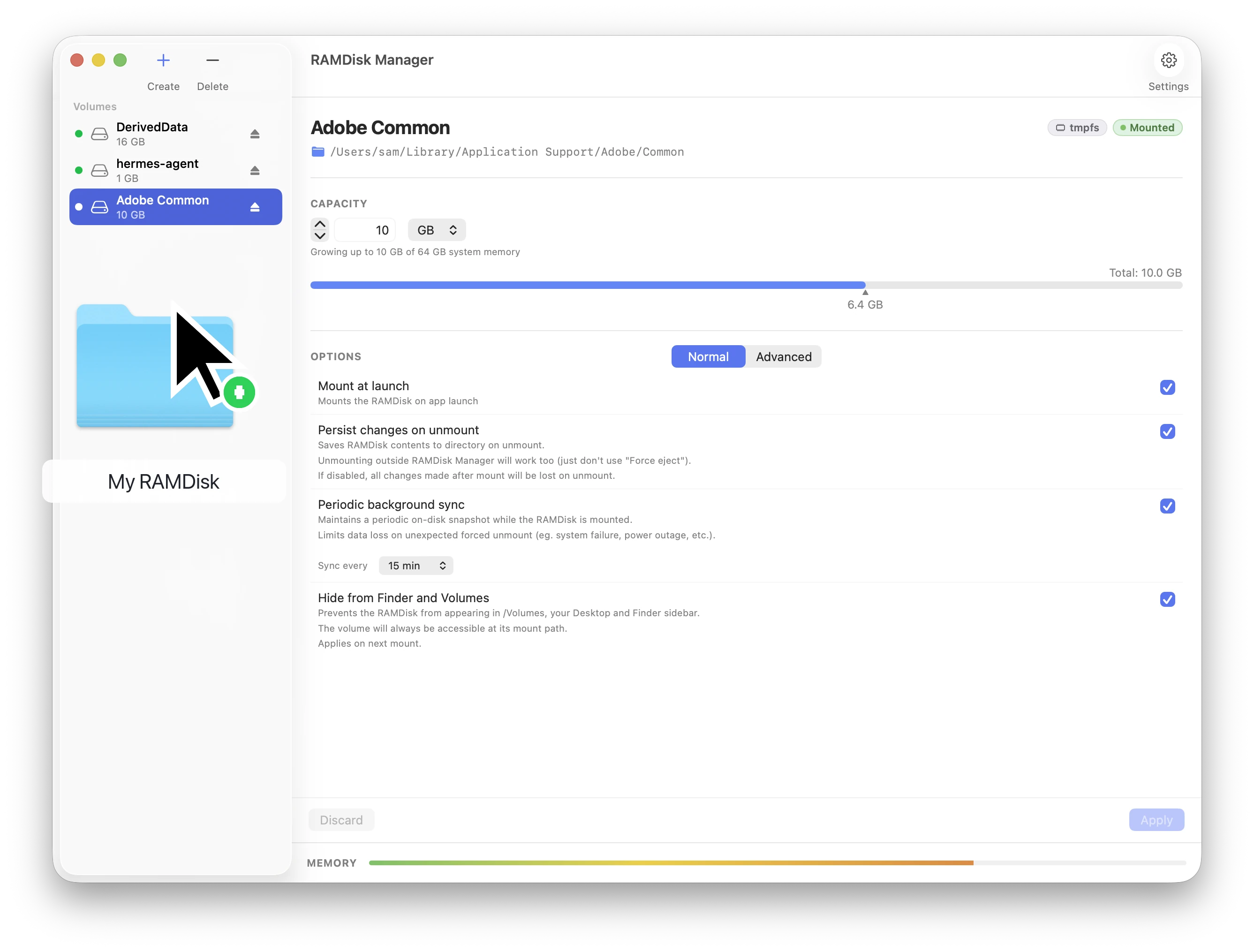
Drop a folder anywhere on the window to turn it into a RAM folder.
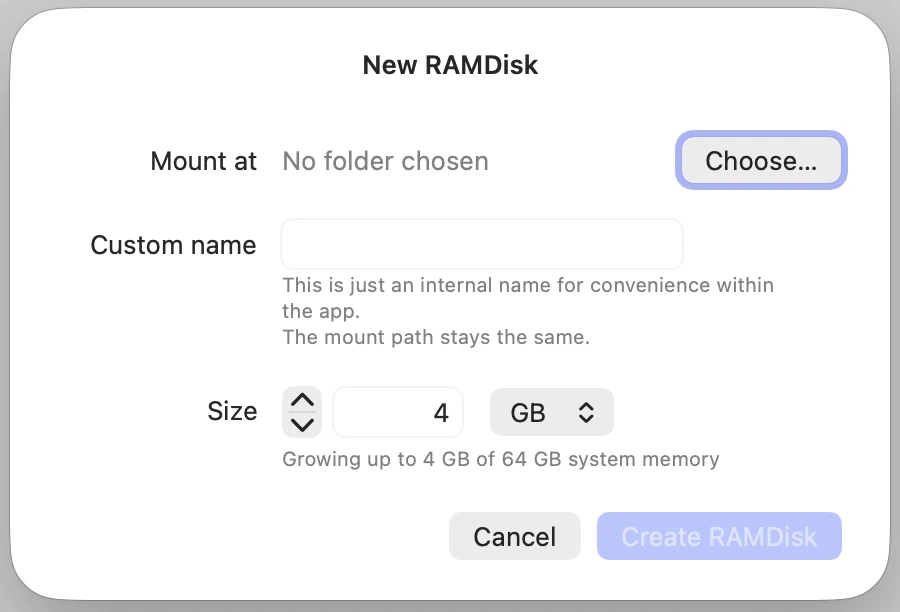
The New RAM folder sheet: pick the folder, then set the size and an optional name.
Then click Create RAM folder. The RAM folder is created and mounted at once: it appears in the sidebar with a green dot, and its path is immediately usable in Finder, the Terminal and every app.
From the Terminal,
ram-folder create <folder> --size <size> does
the same: see Command line.
What happens to the files already in the folder?
They are loaded into the RAM folder (“Existing folder files will be loaded into the RAM folder”). While it is mounted, you work on that copy in RAM. With Sync RAM folder on (the default), your changes are saved back into the folder when the RAM folder is unmounted. See Persistence.
You can also pick an empty folder to start with a clean RAM folder. If the folder doesn’t exist yet, the command line creates it for you.
What size should I choose?
Set the size in the Size field, in MB or GB. The size is a ceiling, not a reservation: the RAM folder uses memory only for the files it actually holds, up to that size. The sheet shows it, for example “Growing up to 10 GB of 16 GB system memory.”
- For a folder that already has files, RAM Folder suggests the folder’s size plus 50% of headroom, and won’t let you go below what the files need.
- For an empty folder, it suggests 4 GB.
- The minimum is 16 MB, and the maximum is 75% of your Mac’s memory.
You can change the size later. See Memory & sizing for what a RAM folder really costs, and what happens when it fills up.
What is the name for?
It labels the RAM folder in the app, the menu bar and the command line
(as ram://<name>). It is optional: without one, the
RAM folder takes its folder’s name. Names must be unique among your RAM
folders, ignoring case. If a name is taken, the sheet suggests a variant
with a number added.
Which folders can’t be used?
RAM Folder refuses a folder that:
- is already a RAM folder, or already used by another mounted volume;
- is inside another RAM folder, or contains a mounted volume;
- is inside
~/Library/Containersor~/Library/Group Containers, which macOS reserves for app sandboxes (see Troubleshooting); - holds more data than 75% of your Mac’s memory (“This folder is too large to fit in a RAM folder”).
What do I see after creating a RAM folder?
Select it in the sidebar. The detail view on the right shows its name and path (click the path to open it in Finder), its state, a capacity bar of used versus total space, and its Options.
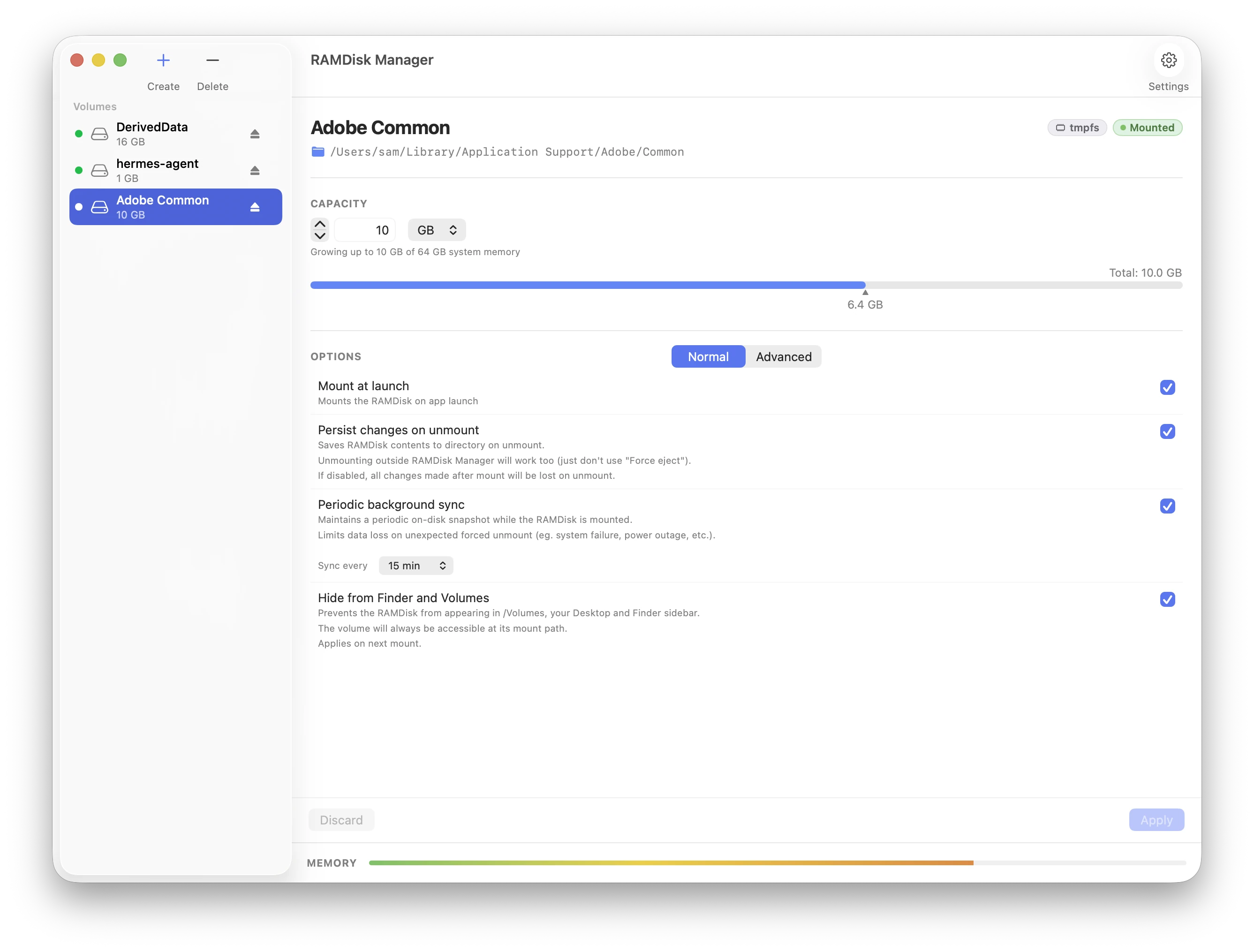
The detail view: capacity, then the Normal and Advanced options.
The defaults suit most uses: Mount at launch, Hide from Desktop and Finder sidebar and Sync RAM folder are on. All options are explained in RAM folder options.
Can I move or rename the folder later?
Yes. RAM Folder follows a folder moved or renamed in Finder, and updates the RAM folder’s path. A RAM folder without a custom name shows the folder’s new name. A custom name stays as you set it.
How do I delete a RAM folder?
Select it and click the trash button in the toolbar (or press ⌘⌫). RAM Folder asks Destroy “…”? and offers two choices:
- Keep folder: saves the RAM contents into the folder, unmounts, and removes the RAM folder from the app. The folder stays on your disk as an ordinary folder, with your latest files. This is the usual way to stop using a RAM folder.
- Delete folder: unmounts without saving and deletes the folder from your disk. The RAM contents and the folder’s files are both gone.
Deleting a RAM folder also removes its snapshot. If the last save had not completed, the snapshot is moved to a recovery folder instead: see Data safety.