

RAM Disks Explained
Most Mac users who have used a RAM disk before created it with
hdiutil (now diskutil image attach), or with
an app built on top of it. RAM Folder works differently. This page
explains how, and why it matters for speed, memory use and your
data.
For a longer comparison, with benchmarks and other tools, see our macOS RAM disks guide.
What is a RAM disk?
A RAM disk is a filesystem whose contents are stored entirely in your Mac’s memory instead of on the SSD. Reading and writing never touch storage hardware, so I/O-heavy work runs much faster and causes no SSD wear. The trade-off is that RAM is volatile: when the power goes, so do the contents.
How is a RAM folder different from a classic RAM disk?
A classic macOS RAM disk is a disk image:
hdiutil or diskutil image attach creates a
virtual block device in memory. You then format it (APFS or
HFS+), and it mounts as a new volume under /Volumes.
A RAM folder is a tmpfs volume: a filesystem that stores files directly in memory managed by macOS, with no virtual disk underneath. RAM Folder mounts it on top of a folder you already use, at the same path, and loads that folder’s files into it.
| Classic RAM disk ( hdiutil /
diskutil) |
RAM folder ( tmpfs) |
|
|---|---|---|
| What it is | A disk image in memory, formatted with APFS or HFS+ | A native memory filesystem (macOS 15+) |
| Where it appears | A new volume in /Volumes |
Any folder you choose, at its existing path |
| Memory used | The full size, reserved as it fills and never given back | Only what the files use, given back when they are deleted |
| Speed | Every access goes through a virtual disk and a full filesystem | No extra layers between apps and memory |
| Your files after eject | Gone, unless you copied them out yourself | Saved back into the folder (with Sync RAM folder on) |
| After a reboot | Recreate it by hand, or with a script | Remounted and refilled automatically (with Mount at launch) |
Why is tmpfs faster than a disk-image RAM disk?
A disk-image RAM disk stacks layers: your app talks to APFS or HFS+, which writes blocks to a virtual disk, which finally copies them into memory. Each layer adds work to every read and write. tmpfs stores files directly in memory, without a block device or an on-disk format in between.
On the same Mac (Mac Studio, M1 Max, 64 GB, Blackmagic Disk Speed Test), a persistent disk-image RAM disk reached about 3.5 GB/s read and 1.2 GB/s write, versus about 11.4 GB/s read and 12 GB/s write for a RAM folder.
Does a RAM folder reserve its full size in memory?
No. The size of a RAM folder is a ceiling, not a reservation: an 8 GB RAM folder holding 300 MB of files uses about 300 MB of RAM, and deleting files gives the memory back right away. A disk-image RAM disk, by contrast, holds on to every block that was ever written, and a persistent disk-image setup can reserve its full size both in RAM and on your disk. See Memory & sizing.
Why does my folder look empty while a tmpfs volume is mounted on it?
That is how mounting works on macOS (and on every Unix). A volume mounted on a folder covers it: at that path you now see the new volume, and the folder’s own files are hidden underneath, untouched, until the volume is unmounted. A bare tmpfs volume starts empty, and everything written to it is discarded at unmount.
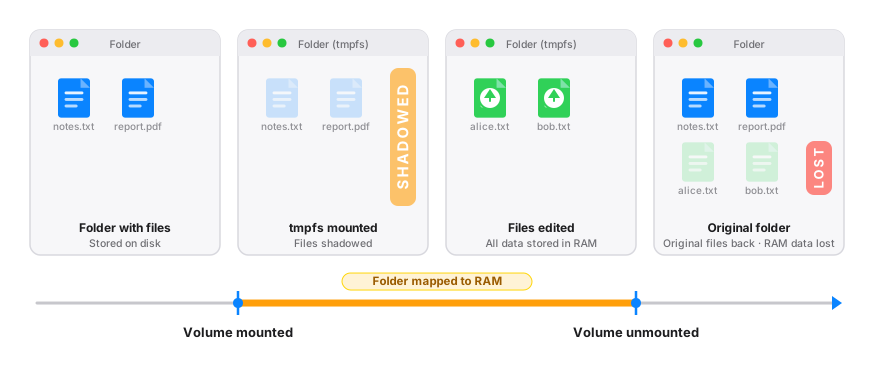
RAM Folder adds what bare tmpfs lacks: it copies the folder’s files in after mounting, and saves the RAM contents back into the folder at unmount. That is Persistence.
Can’t I just use a disk image that persists?
You can attach a .dmg or sparse image and keep your
files in it. It survives an eject because the image is a file on your
disk, but you pay for that twice:
- Speed: all the disk-image layers stay in the path, so you give back most of the speed you were after.
- Space: the image takes its full size on disk, and up to its full size in RAM once mounted.
A RAM folder takes the other route. Your data lives in RAM at full speed and is copied back to a normal folder when it is unmounted, so persistence costs nothing while you work.
Do I lose anything compared with an APFS RAM disk?
A few things worth knowing:
- Case-sensitive names. tmpfs treats
Readme.txtandREADME.txtas two different files, while APFS volumes on Macs usually don’t. Most tools don’t care. A folder holding two names that differ only by case can’t be saved back to a normal case-insensitive folder. - No Spotlight indexing of the RAM folder’s contents.
- No APFS features such as snapshots, clones or encryption. They make little sense for data in RAM anyway.
If you need a case-insensitive or APFS-formatted RAM disk, tell us in a feature request.
Why doesn’t my RAM folder appear in Disk Utility?
Because it isn’t a disk: there is no /dev/disk device
behind a tmpfs volume, so diskutil list and Disk Utility
don’t show it. To see it from the Terminal, run:
mount | grep tmpfsIn Finder, a RAM folder appears as a volume on the Desktop and in the sidebar only when Hide from Desktop and Finder sidebar is off. It is on by default, so a RAM folder looks like an ordinary folder.
Does RAM Folder work on older macOS versions?
No. RAM Folder requires macOS 15 Sequoia or later, the first version with tmpfs.
What are RAM folders good for?
Anything that reads and rewrites many files:
- Build outputs and caches: Xcode DerivedData, package-manager caches, compiler caches.
- Developer scratch space: temporary directories, unpacked archives, generated assets, test fixtures.
- Browser profiles and app caches that churn constantly.
- Media intermediates: audio and video renders and previews.
- CI and automation: a fast, disposable filesystem that leaves no trace on the SSD (see Command line).
Ready to try it? Start with Getting started.