

Persistence
RAM is volatile. Anything that lives only in memory is gone when the volume is unmounted, the Mac restarts or the power goes out. Persistence is how RAM Folder carries your files over to real storage and back, so a RAM folder behaves like an ordinary folder that is simply much faster.
This is the most important page in the Help Center: almost every surprising behavior follows from the model explained here. To see what happens when something goes wrong (crash, power loss, a failed save), continue with Data safety.
Doesn’t a RAM disk lose everything when it is ejected?
A bare one does. RAM Folder uses tmpfs, the memory filesystem built into macOS 15 and later (see RAM disks explained). On its own, tmpfs has two properties that make it unsuitable for data you want to keep:
- When it is mounted on a folder, it shadows that folder: the folder suddenly looks empty, because you now see the empty RAM volume on top of it.
- When it is unmounted, everything written to it is thrown away, and the original folder contents come back, unchanged.
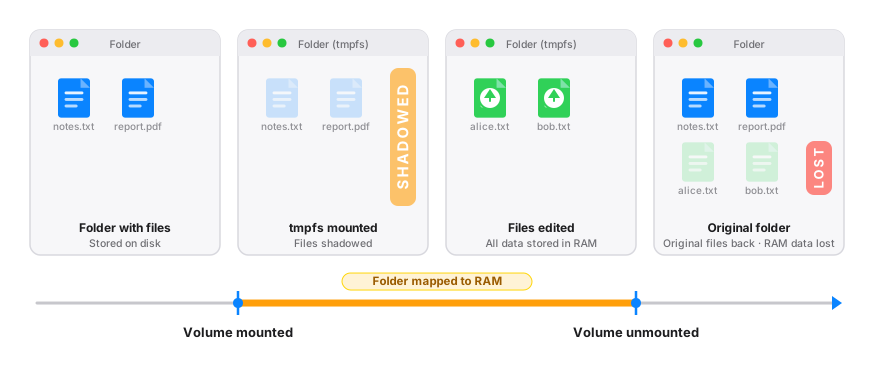
That is fine for scratch space, but not for a folder you work in. Persistence fixes both problems.
How does RAM Folder keep my files?
With Sync RAM folder on (the default), RAM Folder copies your files across the mount boundary in both directions:
- Before mounting, the folder’s contents are copied into a private snapshot, while the folder is still visible.
- After mounting, the snapshot is copied into the new, empty RAM volume. Your files appear at the same path, now in RAM.
- Before unmounting, the RAM contents are copied back into the snapshot.
- After unmounting, the snapshot is copied back into the original folder, which now holds your latest work.
Switching a folder to RAM and back is therefore transparent. Same path, same files, no migration.
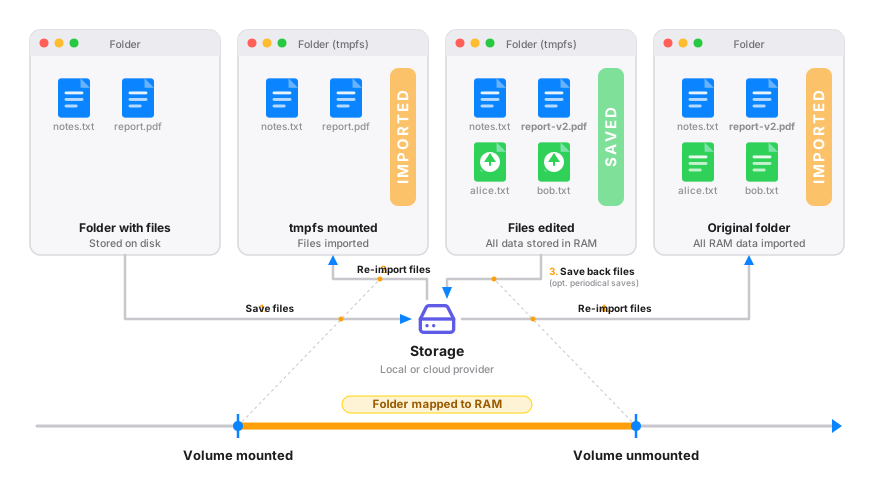
The copies are incremental: only files that changed are transferred, so saving a large folder where little changed is quick.
What are the “three copies” of my data?
At any time, your data can exist in up to three places:
| Copy | Where it lives | Survives unmount / reboot? |
|---|---|---|
| RAM | The folder’s path, while the volume is mounted | No |
| Snapshot | RAM Folder’s private storage on your Mac, or your bucket when remote storage is on | Yes |
| Folder | The folder’s path, while the volume is unmounted (on your SSD) | Yes |
The snapshot exists because, once the volume is mounted, the folder on your SSD is hidden. RAM Folder needs a place that can be reached from both sides of the mount to carry your data across.
When exactly is my data saved?
For a RAM folder with Sync RAM folder on, a save runs:
- When you eject it, from RAM Folder, its menu-bar
panel, Finder,
diskutil,umountor theram-foldercommand line; - When you quit RAM Folder, including the automatic quit during a normal macOS shutdown, restart or logout;
- When you delete it with Keep folder;
- When you resize it while it is mounted, since resizing remounts it;
- At each periodic save, if Save RAM folder periodically is on. This one only refreshes the snapshot (see below).
That is the complete list. Between those moments, changes exist in RAM only. A power cut or kernel panic triggers no save at all; see Data safety.
Is my data saved if I eject from Finder while RAM Folder isn’t running?
Yes. RAM Folder’s background helper runs all the time, even when the
app is closed. If you eject a RAM folder from Finder (or with
diskutil / umount) while the app isn’t open,
the helper briefly holds the eject, runs the same save the app would,
then completes the eject. The result is the same as an eject from the
app: your folder holds your latest work.
The save is skipped only by a forced eject or by a volume that disappears without asking first, such as a crash.
What does “Save RAM folder periodically” do?
It copies the RAM contents into the snapshot at the interval you choose under Sync every (5 minutes to 24 hours, 15 minutes by default). It is off by default, and it is only offered when Sync RAM folder is on.
It limits how much a crash can cost you: after a hard crash, the snapshot holds your work as of the last periodic save.
I turned on periodic saves. Why isn’t my folder updating?
Because a periodic save writes to the snapshot, not to your folder. While the volume is mounted, the folder underneath is hidden by the RAM volume. Writing into it would have no visible effect, and the next eject overwrites it anyway.
Your folder itself is updated by one thing only: the save that runs when the volume is unmounted. As a result, after a crash the newest copy of your data may be the snapshot rather than the folder, and you must rescue it before mounting again. Data safety explains how.
While my RAM folder is unmounted, can I edit the folder directly?
Yes. While unmounted, the folder is the source of truth. It is an ordinary folder: anything you add, change or delete in it is exactly what the next mount starts from. The same applies to changes made by other apps, by Time Machine restores and by sync clients.
If you empty the folder while the RAM folder is unmounted, the next mount comes up empty. RAM Folder treats the deletion as intentional and updates its snapshot to match. The snapshot is a bridge, not a backup: it does not bring back files you removed from the folder.
There is one exception. If the last save failed partway, RAM Folder temporarily trusts the snapshot over the folder until a save succeeds. See Data safety.
How do I make a temporary RAM folder instead?
Turn Sync RAM folder off. The folder’s contents are still loaded into RAM at every mount, so the volume starts from what the folder holds. But nothing is written back: everything created or changed while it is mounted is discarded at unmount, and the original folder reappears unchanged.
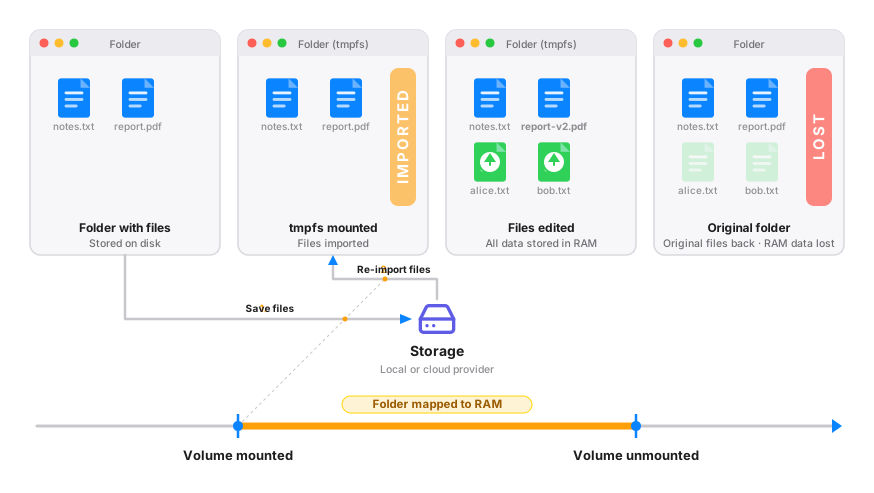
This suits build caches, temporary directories and other throwaway data, where saving would only cost time and SSD writes. With sync off:
- no snapshot is kept: the import’s working copy is removed right after the mount;
- Save RAM folder periodically and remote storage are not available;
- quitting RAM Folder does not ask about the volume: it is simply unmounted.
Do I need to keep RAM Folder open for persistence to work?
Only for periodic saves and Mount at launch, which are scheduled by the app. A mounted RAM folder lives in macOS itself, not in the app: it stays mounted and usable if RAM Folder quits unexpectedly. Ejects are saved whether the app is open or not (see above).
For RAM folders that are always ready, use Open at login together with Mount at launch, and menu-bar mode if you’d rather not see a Dock icon. See Getting started.
Where is the snapshot stored?
For local storage (the default), each RAM folder has its own container:
~/Library/Application Support/RAM Folder/sync/<folder-name>-<id>.noindex/
It contains:
snapshot/: a plain copy of your files, which you can open in Finder;state.json: when the last save happened, and whether it was a periodic save or an unmount;mirror-pending.json: present only when the last save did not finish copying into your folder. See Data safety.
The .noindex suffix keeps Spotlight from indexing a
second copy of your files. If you move or rename the folder, RAM Folder
still finds its container, because it is matched by the RAM folder’s
internal ID, not by its name.
With remote storage, the snapshot lives in your bucket instead. The local container then only holds a copy when a save had to fall back to local storage because the network was unavailable.
Is the snapshot a backup?
No. It has no history and no versions, and it is overwritten from your folder at every mount. Think of it as internal plumbing with one useful property: it survives unmounts and crashes, so in some failure scenarios it holds the only good copy of your last session.
For data you care about, keep the folder inside your normal backup (Time Machine or otherwise). After a clean eject, the folder holds everything.
Which files are never synced?
The sync deliberately skips macOS bookkeeping files, in both directions:
.fseventsd,.Trashes,.Spotlight-V100,.TemporaryItems.VolumeIcon.icns- anything whose name starts with
.com.apple.
If you compare the folder and the mounted RAM folder and the counts differ by a few hidden entries, this is why. Don’t store real data under names like these: it won’t be carried across.
How does RAM Folder decide which files changed?
Saves are performed by a bundled copy of rclone. The File comparison method, on the Advanced tab of the RAM folder’s options, decides how a changed file is detected:
- Size & Modification time (default): compares size and modification date. It is fast and right for almost every workload, but an edit that keeps both the size and the modification date unchanged can be missed.
- File contents (checksum): compares a hash of every file. It catches every edit, but reads every file in full, so saves take longer. With this method, modification dates are not copied over.
Are permissions, dates and Finder metadata preserved?
The sync preserves file contents, the folder structure (empty folders included), symbolic links and modification dates (except with the checksum method, see above).
It does not carry file metadata: permission bits (such as the executable flag), ownership, ACLs and extended attributes (Finder tags, labels, quarantine flags). Files written by a save get default permissions for your user. If a tool depends on exact permissions in the folder, check them after the first save, or keep those files outside the RAM folder.
Can a save run while apps are still using the files?
It can, but you will be warned first. Before an eject or a quit, RAM Folder lists the apps that still have files open on the volume, and offers to quit them so the save captures finished files. You can choose Ignore for an app instead. RAM Folder then warns that “Saving while apps have files open can capture a partial write”: a file that is half-written at that moment is saved half-written. See Mounting & ejecting.
The short version
- While mounted, what you see at the folder’s path lives in RAM. The folder on your SSD is hidden and unchanged until the volume is unmounted.
- While unmounted, the folder on your SSD is the source of truth, deletions included.
- Your folder is updated when the volume is unmounted, not continuously. Periodic saves refresh the snapshot in between, which narrows what a crash can cost.
- With Sync RAM folder off, the RAM folder is temporary: it starts from the folder’s contents, and its changes are discarded at unmount.